How to Make a Window Peeper Video from a Photo
 Window Peeper editorial team
Prepare a portrait, choose a simple scene, generate a window peeper video and troubleshoot camera drift, faces, hands and curtain timing.
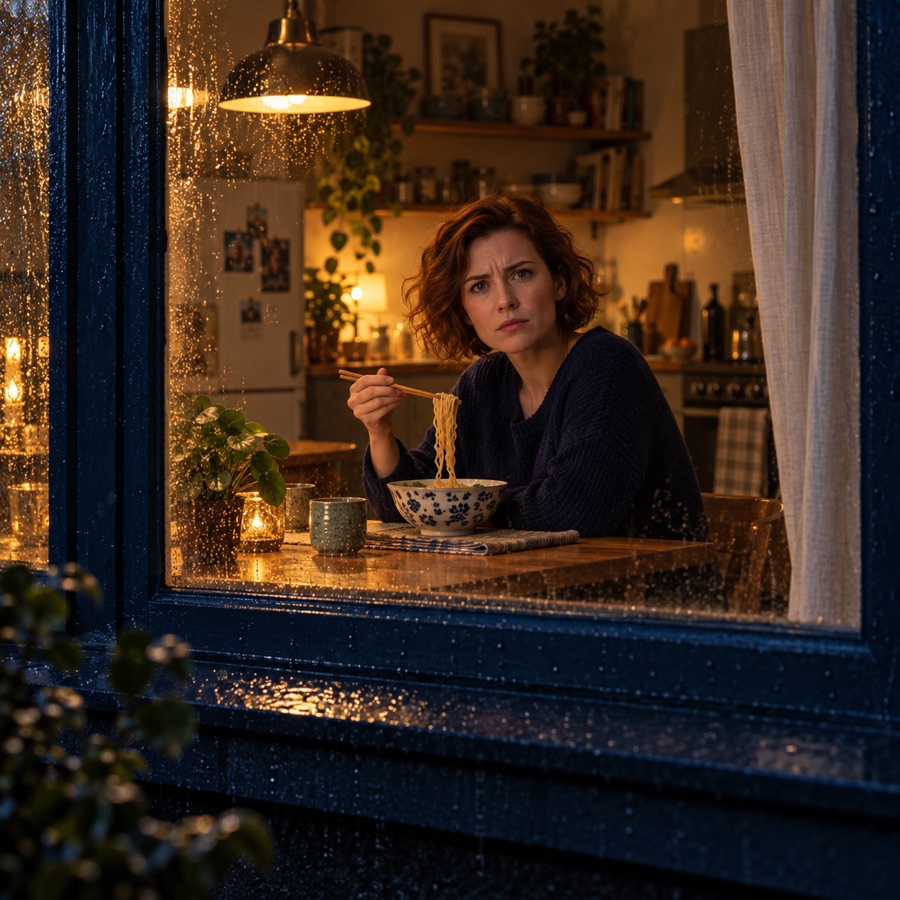
To make a window peeper video, start with one clear portrait, choose a simple indoor activity and describe a short sequence that ends with the subject closing a curtain. The reference image supplies the person; the prompt supplies the setting and movement. A good source photo helps, but the generated video can still change details or interpret an action differently.
This walkthrough uses the Window Peeper generator at windowpeeper.pro. Generation is processed through APIMart using the configured Seedance model. Availability depends on the service configuration and provider response. Check the generator for the currently available output settings before you purchase credits or submit an image.
1. Prepare a photo with useful visual information
Choose a photograph of one adult who has agreed to appear in an AI-generated clip. Keep the face clear, reasonably sharp and free of heavy filters. A front-facing or slight three-quarter view is easier to describe than a face hidden behind a phone, sunglasses or hair. Avoid a group photograph where the intended subject is ambiguous.
Leave enough space around the head and shoulders. An extremely tight crop forces the model to invent the body and arms needed for the curtain action. If possible, use a natural photograph with even light and a simple background. A large file is not automatically a better reference if the face itself is blurry or very small.
Use only images you have permission to upload. Do not use someone else’s private photograph as a prank. The upload will be provided to an external generation service for processing; read the privacy policy before submitting sensitive material.
2. Choose one activity and one reaction
Begin with an activity that can be understood immediately: eating a burger, holding noodles, reading a book or sitting with a mug. Then choose one reaction, such as a startled glance or a small embarrassed smile. The reaction should lead naturally to drawing the curtain.
Do not ask for several different meals, multiple people and complicated dialogue in your first attempt. Each extra instruction creates another detail the model must coordinate. If a scene is difficult, remove an action before adding more descriptive adjectives. A simple sequence with visible continuity is more useful than an ambitious sequence whose hands or objects keep changing.
3. Describe the window and the ending
Specify that the camera remains outside the window for the whole shot. Keep the window frame visible and the room on the other side of the glass. Give the curtain a clear starting state: open enough to see the subject. Give it a clear ending state: drawn across the opening.
A useful sequence is establish, activity, notice, react, close. For a 10-second prompt, these can occupy roughly two seconds each, but time labels are guidance, not frame-accurate editing instructions. The generated clip may compress an action, combine two beats or omit a detail. See the prompt examples for wording you can adapt.
4. Check the pack and submit once
Sign in, inspect your available balance and review the pricing page. The launch packs are one-time purchases: $9.90 for one generation, $19.90 for three, or $29.90 for five. Each video generation uses 10 credits. Check the checkout total and available configuration, as this article may not reflect later pricing changes.
Upload your reference, choose your scene and submit the request. Allow the task to update before starting another generation. Processing time varies with the provider and queue; there is no useful universal promise that every video finishes in a fixed number of seconds. If the service reports an error, read the task status instead of repeatedly clicking generate.
5. Review the result before sharing
Watch the beginning, the recognition moment and the curtain ending separately. Does the subject stay recognizable? Does the camera remain outside? Does the food stay consistent? Can you tell when the subject first notices the viewer? Is the face covered by the curtain at the end rather than accidentally hidden from the start?
Look closely at fingers, utensils and the hand gripping fabric. Check the room and window edges for sudden changes. Download an available completed result and review it at normal playback speed too: an isolated imperfect frame may be less noticeable than a sudden camera move that changes the whole story.
Common problems and useful changes
The camera enters the room: state the outside position once near the beginning and again in a short constraint at the end. Remove competing instructions such as walking toward the subject or circling around them.
The face changes during the reaction: try a clearer source image and a smaller head movement. A quick glance is a simpler request than a full turn away and back.
The curtain closes too early: explicitly keep it open during the initial activity. Reserve the closing action for the final beat and avoid describing the curtain as already closed in the setting.
Hands or food distort: choose one prop, keep its movement small and simplify the eating action to holding the item. For provider-confirmed failed tasks, consumed credits are returned once; contact in-app support for unresolved billing questions. A completed but imperfect creative result is a different issue from a task that failed to generate.